
Help / Edit your site with chat
Edit your site with chat
Describe a change in plain language — the AI edits the site and you watch it happen live.
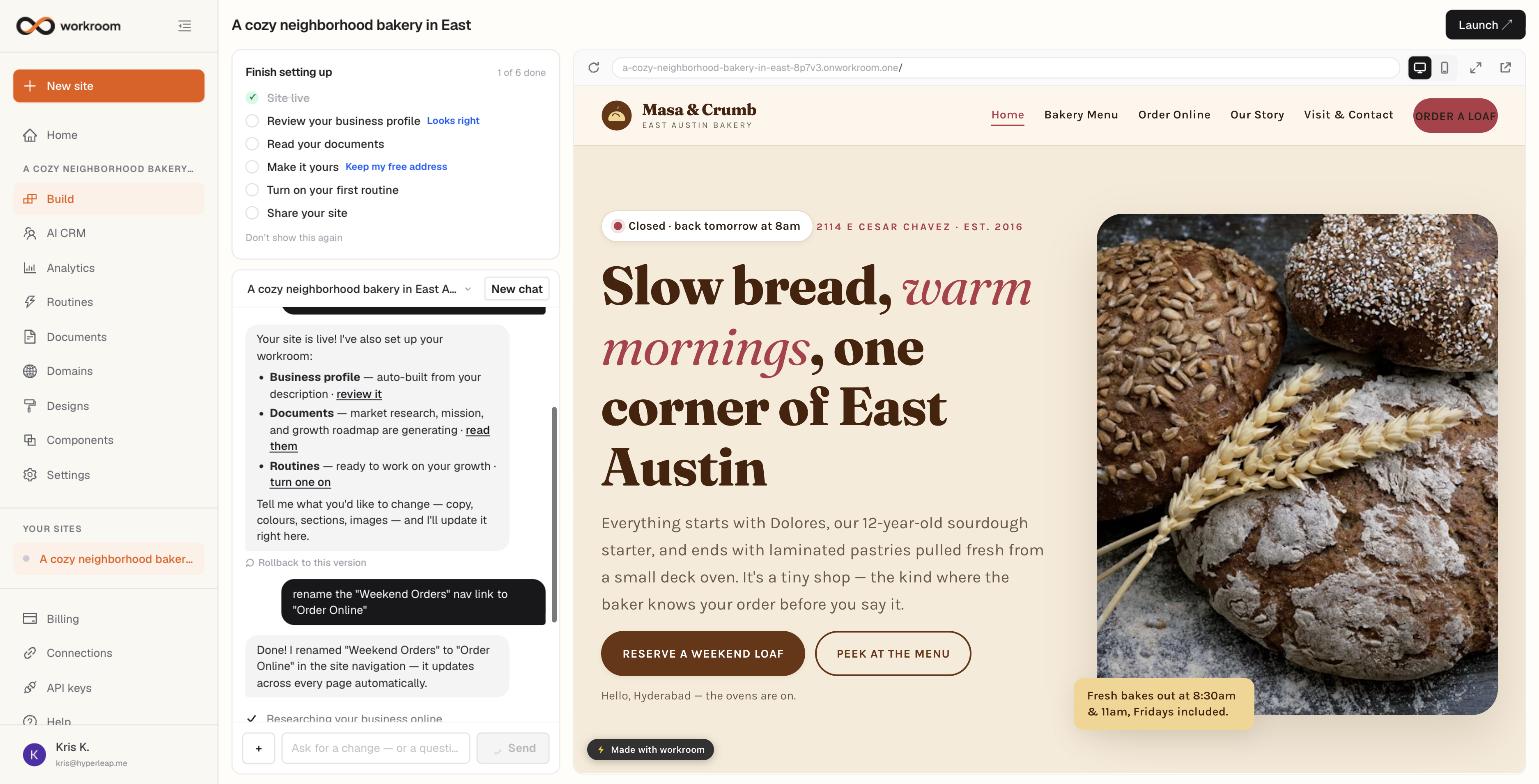
The Build tab is your site editor, but there's no drag-and-drop and no code. You tell the assistant what you want — “make it warmer,” “add a testimonials section,” “change our opening hours” — and it plans the change, applies it, and refreshes the live preview beside the chat.
Making a change
- Open your site and go to Build.
- Type what you want changed — content, style, structure, anything. Quick suggestions like “Make it more modern” appear as tappable chips.
- Watch the assistant plan the change and apply it page by page; the preview refreshes when it's done.
- Don't like it? Every change creates a version — click Rollback to this version on any earlier message to go back instantly.
Guided actions — the “+” menu
- Update business info — change hours, phone, email, address, or your business name once, and it's updated everywhere it appears across the site.
- Announce something — add a banner for an offer, holiday hours, an event, or a new service (and remove it later the same way).
- Add a page — describe the page's purpose, confirm its web address, and let the AI draft the content; it's added to your site's navigation too.
- Who needs attention? — asks your leads agent who's waiting on you and shows suggested replies right in the chat.
The preview pane
The preview is your real, live site — not a mock-up. Use the address bar above it to visit any page, toggle between desktop and mobile widths, go full screen, or open the live site in a new tab. The Launch button in the header always opens what your visitors see.