
Help / Site settings & integrations
Site settings & integrations
Where leads get delivered, what the AI knows about your business, and your site's version history.
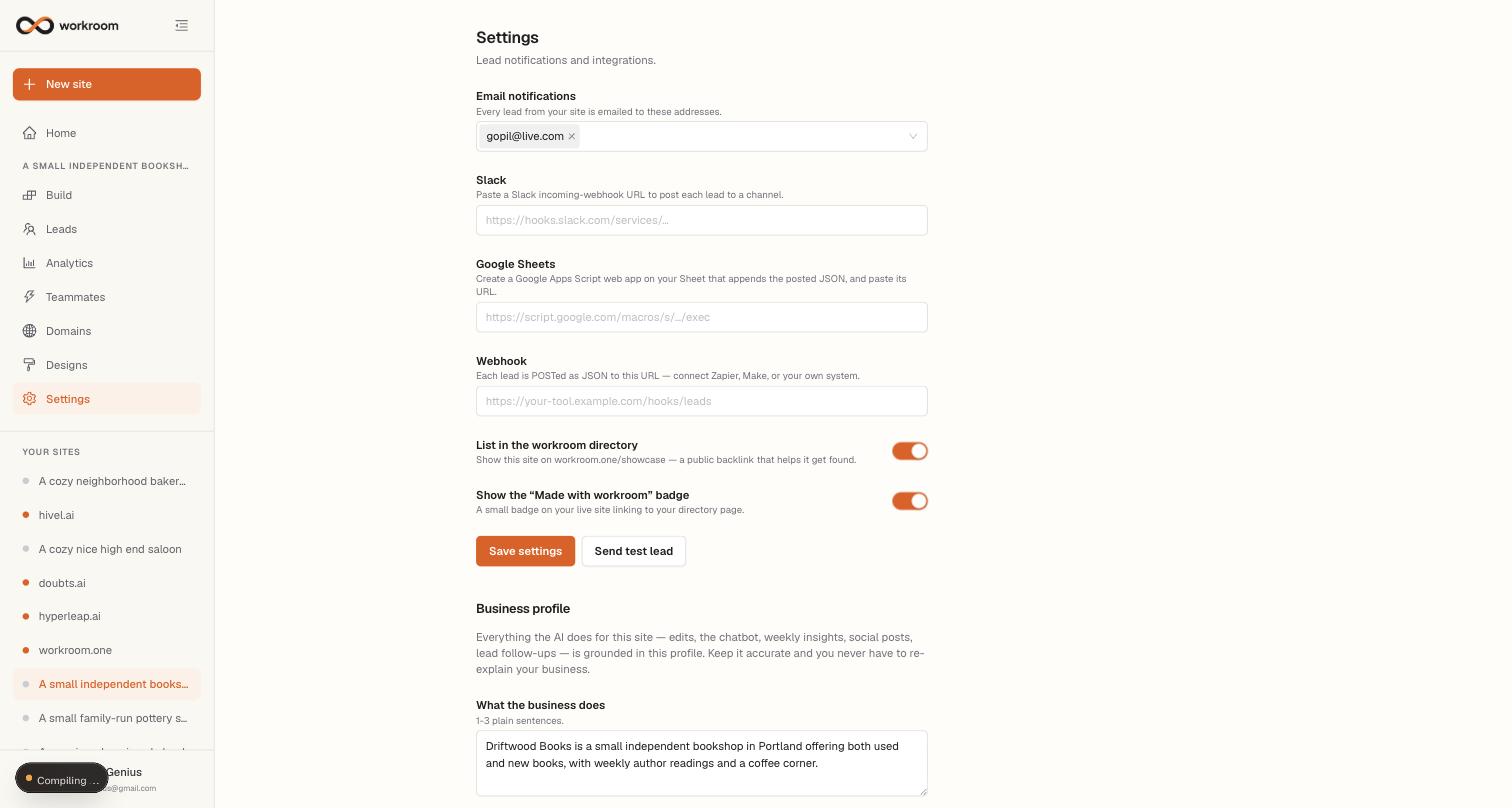
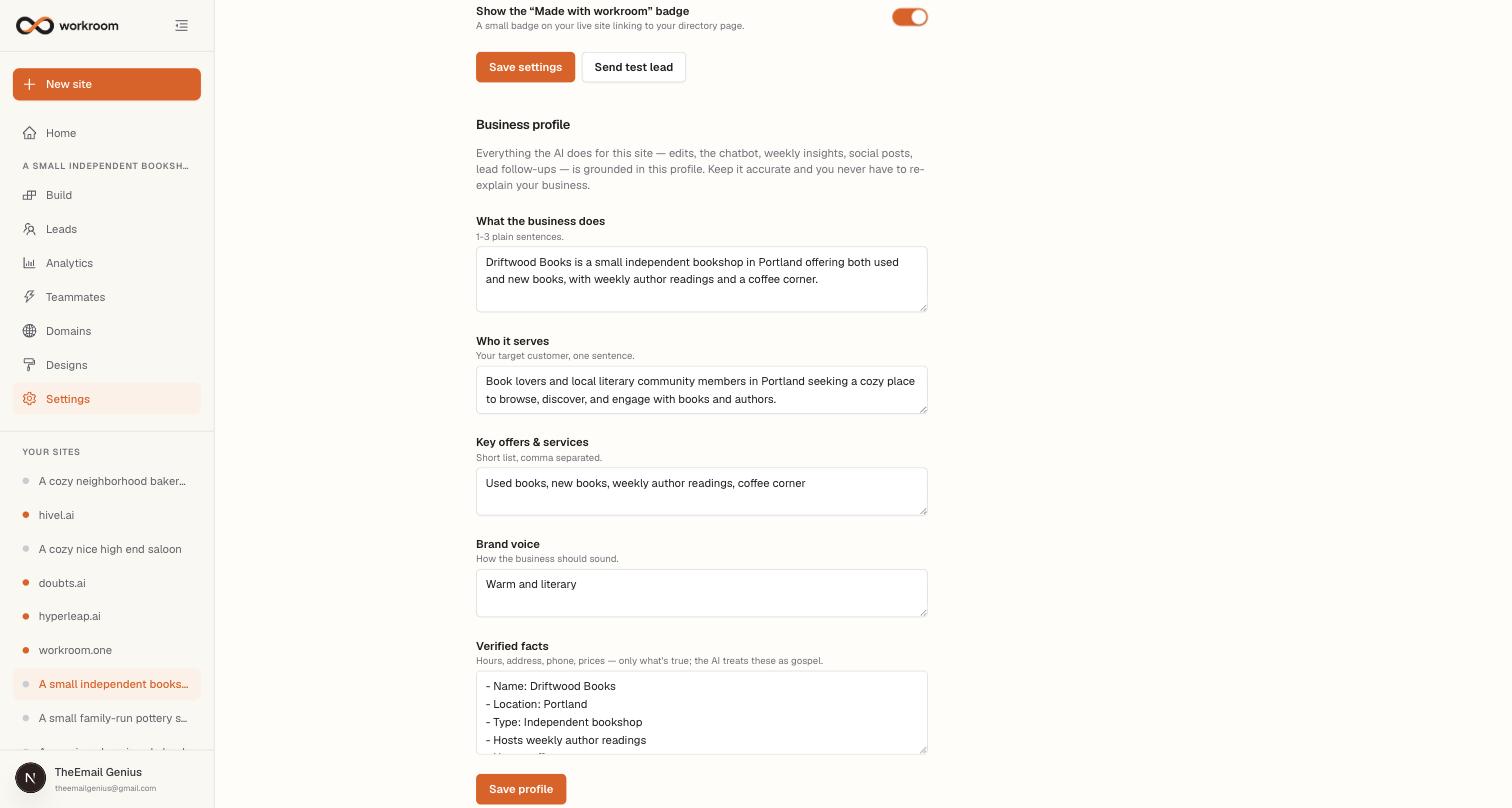
Settings is each site's control room: where new leads get delivered, how your site appears in the workroom directory, the business profile that grounds everything the AI does, and the version history that lets you restore any earlier state of the site.
Lead notifications & integrations
- Email — add up to ten addresses; every lead is emailed to all of them. The same list also gets an email when a new site finishes generating.
- Slack — paste an incoming-webhook URL to post each lead into a channel.
- Google Sheets — paste a Google Apps Script web-app URL and each lead is appended to your sheet.
- Webhook — each lead is sent as JSON to any URL, so you can connect Zapier, Make, or your own system.
- Click Send test lead after saving — it fires a test through every configured channel and shows you what worked.
Two toggles control visibility: “List in the workroom directory” shows your site on workroom.one/showcase (a public backlink that helps it get found), and “Show the Made with workroom badge” controls the small badge on your live site.
Business profile
Everything the AI does for this site — edits, the chatbot, weekly insights, social posts, lead follow-ups — is grounded in this profile. It's seeded automatically when your site is first generated; keep it accurate and you never have to re-explain your business. The Verified facts box (hours, address, phone, prices) is special: the AI treats those lines as gospel and won't state anything that contradicts them.
Google connections & version history
Connect the Google account that owns your Search Console and Analytics and SEO Intelligence folds real search data into its weekly insights. Connections belong to your whole workspace (see “Workspace connections”) — once one is in place, pickers appear here for which Search Console property and which Analytics property this particular site should read. Below that, Version history lists every version of your site with the request that created it — click Restore on any entry and your live site shows that version again.