
Help / Custom domains
Custom domains
Put your site on your own domain — verification is guided and SSL is automatic.
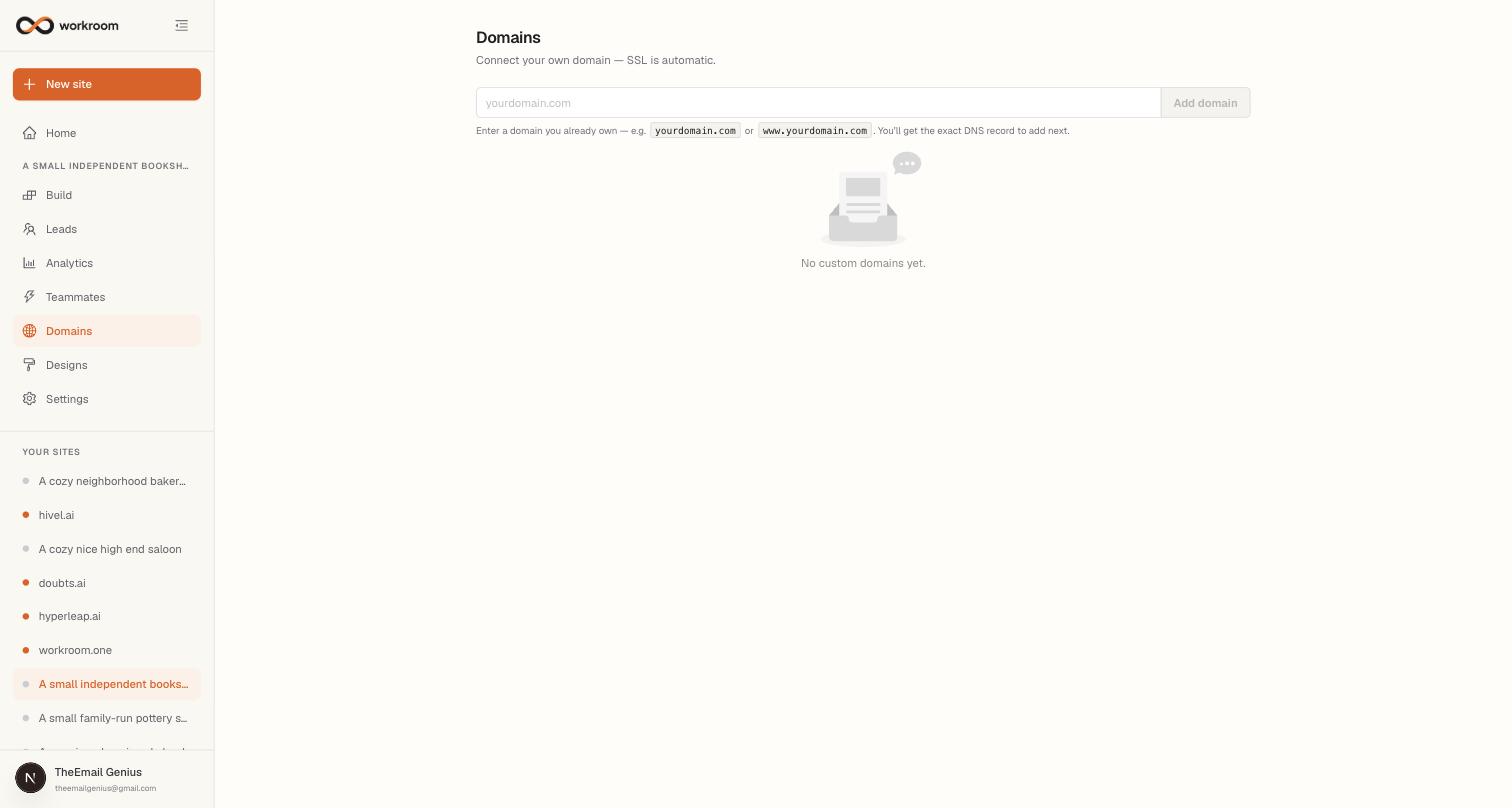
Your site starts on a free workroom address like your-business.onworkroom.one. When you're ready, connect a domain you own — the Domains tab walks you through the one DNS record you need, and the security certificate (SSL) is handled for you.
Connecting your domain
- Open Domains and type your domain (e.g. yourdomain.com), then click Add domain.
- Workroom shows you a DNS record — add it wherever you manage your domain (GoDaddy, Namecheap, Cloudflare, etc.). It's usually one CNAME record.
- Click Refresh on the domain row. Once DNS is verified, SSL is issued automatically — your site is live on your domain, secured, usually within minutes.
Staging and production
Once your domain is active, your workroom address becomes your staging area. Edits you make in Build appear there immediately, but your custom domain keeps showing the version you last published. When the staging version feels right, click Publish to production — your domain updates within a minute. That means you can experiment freely without customers ever seeing a half-finished change.